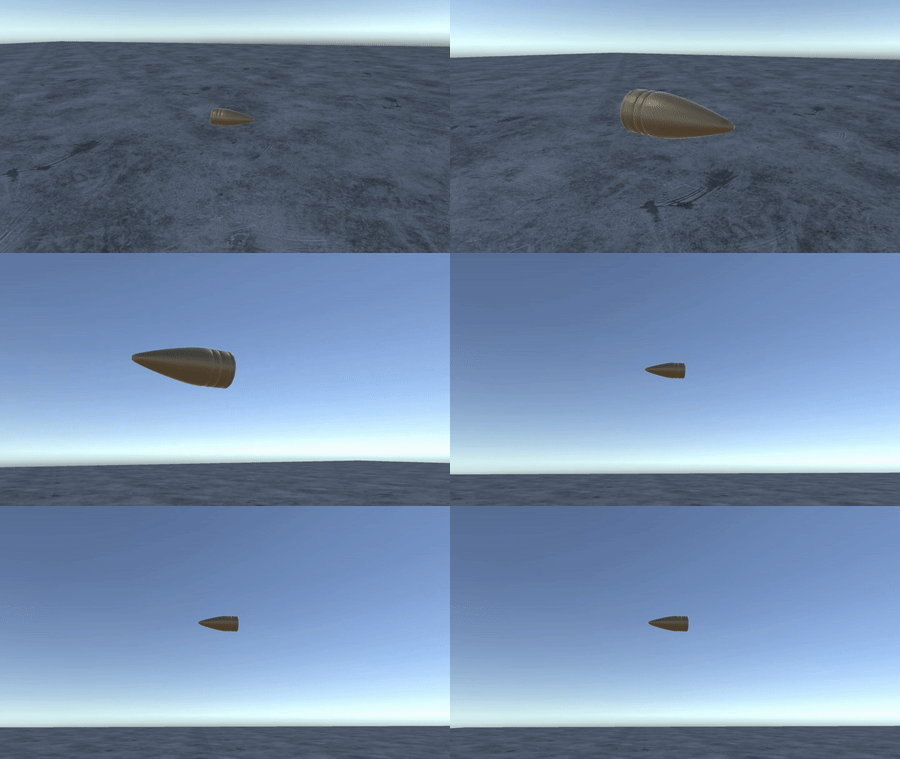
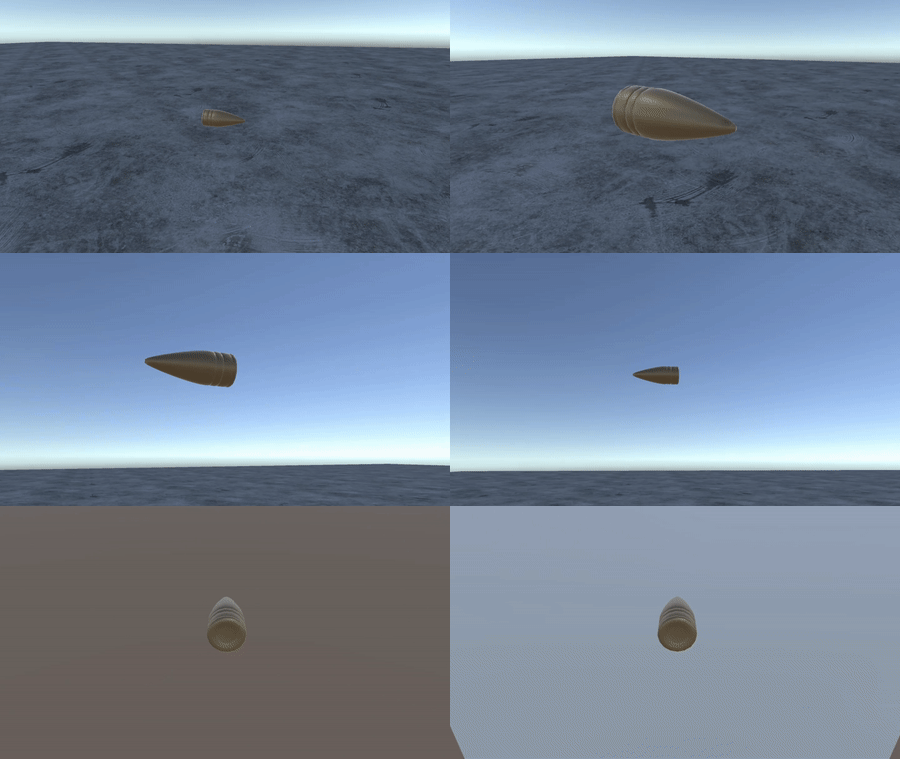
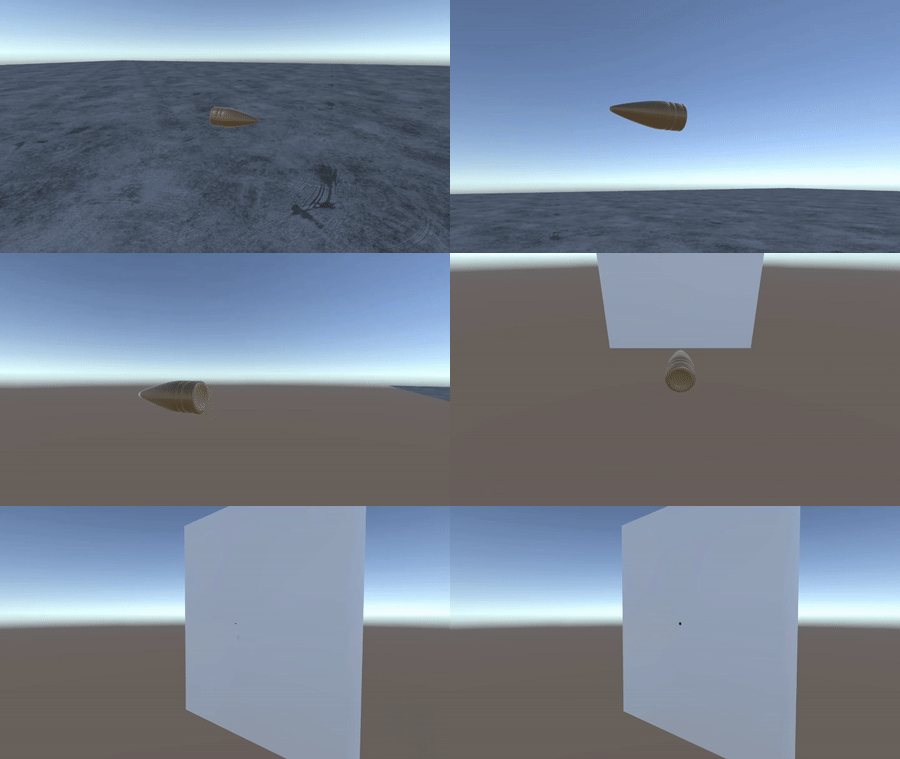
Default bullet-time camera
Build an effect from camera stages without writing a camera controller.
For a ready-made setup, use SAMPLES/Prefabs/Bullet Time - Camera Default Presets.prefab. It contains ten effects. Duplicate it or make a prefab variant before customizing it.
To build the tutorial effect yourself, create an active Bullet Time Camera GameObject and add BulletTimeCameraDefault. A Camera component is required automatically. Keep the controller enabled but the Camera component disabled initially. Use a small near clip plane, such as 0.01, so the bullet can be viewed close up.
Configure the camera for your render pipeline using the matching sample as a reference. Camera depth alone is not a complete cross-pipeline setup. Add an AudioSource and assign it to the script if stages will play audio. Set the collision-detection mask to the scene layers the camera should avoid.
Effects and stages
In Camera Effects, choose Add New, name the effect Tutorial Effect, and select it in Used Effect. Turn off effect randomization while building it. Add an enabled stage named Beginning.
| Section | Controls |
|---|---|
| General | Stage enable state, optional entry/exit audio and the condition for the next stage. |
| Timescale | Virtual bullet speed and optional interpolation or distance-driven control. |
| Motion | OnBullet, OnTarget or OnPath placement, offsets, randomization and interpolation. |
| Look At | Bullet or target tracking, offsets and look-speed interpolation. |
| Z Tilt | Roll angle and interpolation. |
| Shake | Shake amount, speed and duration. |
A newly created stage can have a virtual timescale of zero. Set it above zero, for example 0.05 for an initial check, or the bullet will not progress.
Beginning: move across the bullet
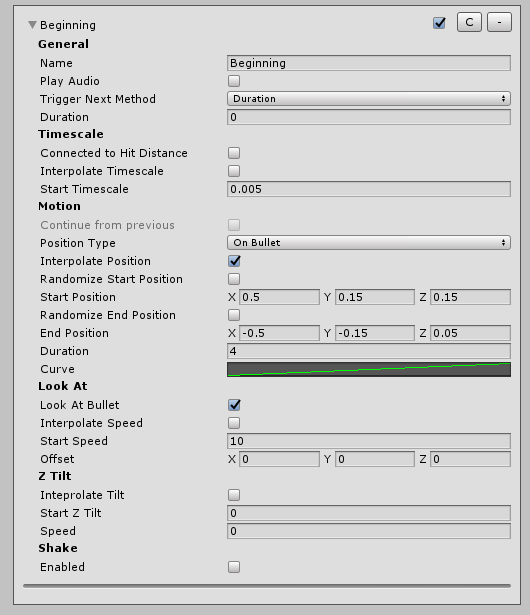
Set Start Timescale to 0.005. In Motion, use OnBullet, enable Interpolate Position, and configure:
| Field | Value |
|---|---|
| Start Position | (0.5, 0.15, 0.15) |
| End Position | (-0.5, -0.15, 0.05) |
| Position Duration | 4 seconds |
| Position Curve | Linear |
| Trigger Next Method | Duration |
| Trigger Duration | 4 seconds |
The positions are offsets relative to the selected reference. Fire at the marked target to see the camera cross the bullet.
Middle: follow from behind
Add an enabled stage named Middle. Set Start Timescale to 0.09. Keep placement OnBullet, enable Continue From Previous and Interpolate Position, then set the end position to (0, 0.1, -0.2), duration to 1, and the curve to linear.
Choose Bullet Path Percentage for Trigger Next Method and set its value to 0.96. This moves into the next stage when the bullet has travelled 96% of its recorded path distance.
End: watch the target
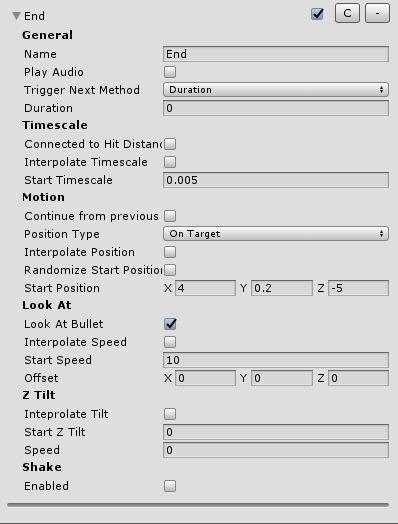
Add an enabled End stage. Set Start Timescale to 0.005, choose OnTarget, and set Start Position to (4, 0.5, -5). Disable Continue From Previous and Interpolate Position for a direct cut. There is no next stage, so its transition condition is not needed.
Adjust the effect's waits before resetting timescale and before ending to control how long the final view remains. Test with the target position, scene geometry and bullet speed you actually use; those affect framing and timing.
Other transitions and presets
Stage transitions can use Duration, BulletTravelDistance, DistanceToBulletBiggerThan, DistanceToBulletSmallerThan, DistanceToTargetSmallerThan, BulletPathPercentage or WhenTargetIsHit. Position can follow the bullet, target, or a point along the path. Interpolation curves, randomized offsets, look speed, roll and shake let you vary each effect.
The supplied preset names are Side To Target, Target Watcher, Target Watcher Bullet Focus, Watch Bullet In Middle, Track Bullet, 180 Degree Dramatic, Watch Bullet - Front to Back, Swing Around Bullet, Topdown To Behind and Watch Bullet Generic.
Use ChangeSelectedEffect(name) or a valid index at runtime. Disable RandomizeEffects for a fixed choice. See the camera API for bounds and properties.