Ballistic surfaces: penetration
Let bullets pass through colliders and lose energy.
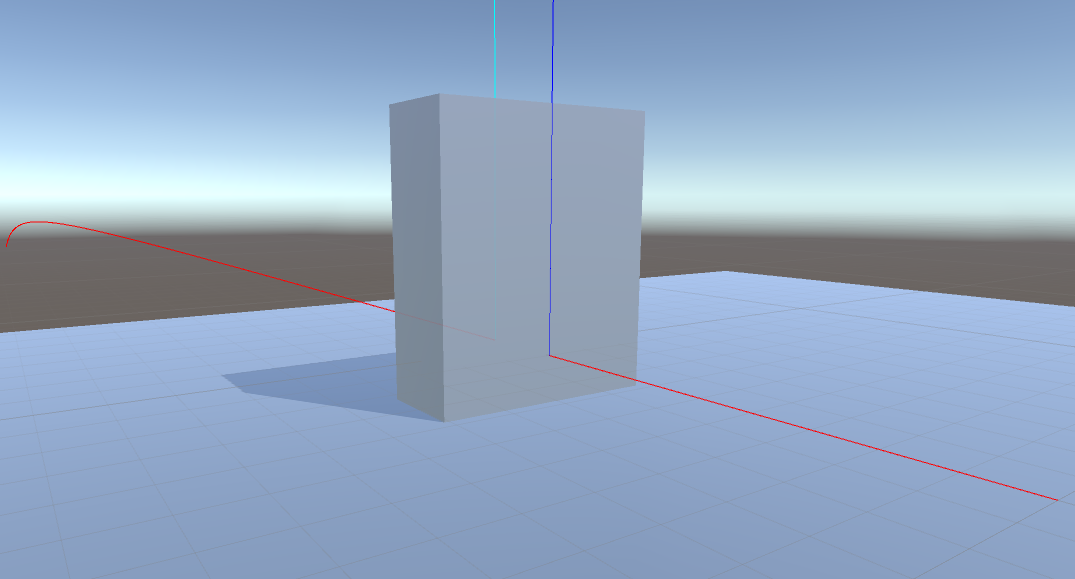
Restore the cube to (0, 2, 10), scale (5, 6, 2), and the camera FOV to 60. Add BallisticSurface to the transform detected by the raycast. The runtime uses hit.transform.GetComponent<BallisticSurface>(), not a parent search.
Choose Custom, enable penetration and disable ricochet for this experiment.
| Setting | Effect |
|---|---|
| Min Energy | Entry requires energy strictly greater than this threshold, in joules at runtime. |
| Energy Consumption | Fraction lost for each thickness step: 0 preserves energy; 1 removes it. |
| Deflection Angles | Range used for randomized exit deflection. |
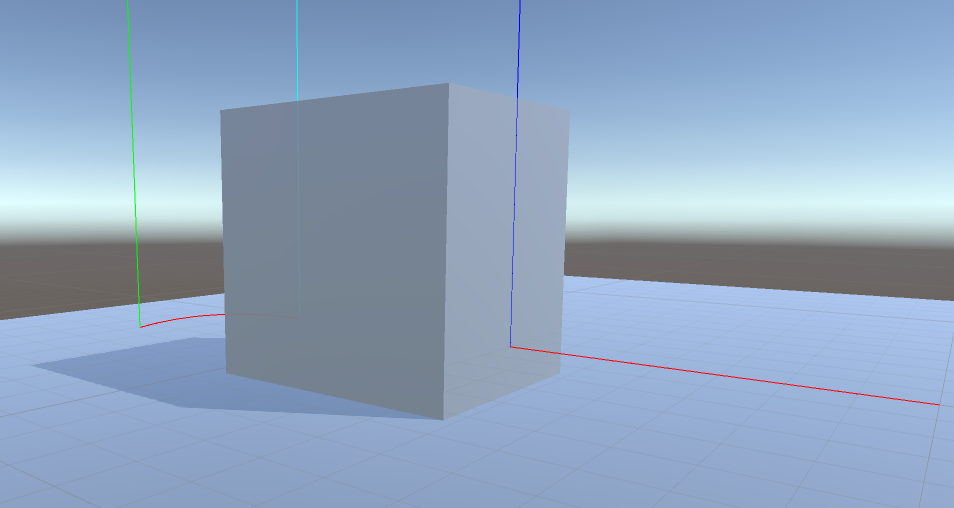
Fire at the cube. With hit debugging enabled, blue marks penetration entry and cyan marks an exit. Increase Z scale to 6, then 8, and compare the energy and path after the surface. Exact results depend on the cartridge, impact direction and settings; reducing remaining energy can make the shot drop sharply or stop without an exit event.
Thickness means the entry-to-exit path inside the collider, not its local Z scale. A different shot angle changes that distance. The current implementation applies repeated energy reductions in steps up to 0.5 world units when the exit is found. It is an approximation, not continuous material-density simulation.
Try a larger deflection range to exaggerate the variation between shots, then reduce it for your game. Do not overlap penetrable surfaces: the runtime explicitly treats overlapping penetration as an unsupported edge case.
Presets include Wood, HardWood, Metal, Steel, LightSteel, Plastic and Cloth. They are starting points for gameplay tuning.